Skip to content
Leviosa
Native for macOS and Windows

Draw on top of anything on your screen.

Pen, highlighter, laser, shapes and arrows over any app. Whiteboard, floating camera, recording with an editor and screen casting with a code. All local, all light.

macOS 12 or later · Apple Silicon and Intel Windows 10 or later · x64 and ARM64

Quarterly report

Revenue grew 24% this quarter, driven by annual plans.

Churn fell to 2.1%, the lowest ever.

Next step: launch screen casting in November.

Leviosa's vertical floating toolbar with tools, colors and width
This is what your audience sees Move your mouse: the laser follows you. Scroll to draw ↓
Features

One floating toolbar. Everything a class, demo or meeting needs.

Leviosa sits on top of what you already use: slides, code, browser, video. No switching windows.

Drawing

Pressure-sensitive pen with smoothing, a highlighter that doesn't stack, a laser that fades on its own, 8 shapes, arrows, text, stamps and numbering. Smart shapes turn a scribble into a line, arrow, ellipse or rectangle.

  • 9-color palette on keys 1–9
  • 100 undo steps per display
  • Erase by stroke or by area
1

Whiteboard

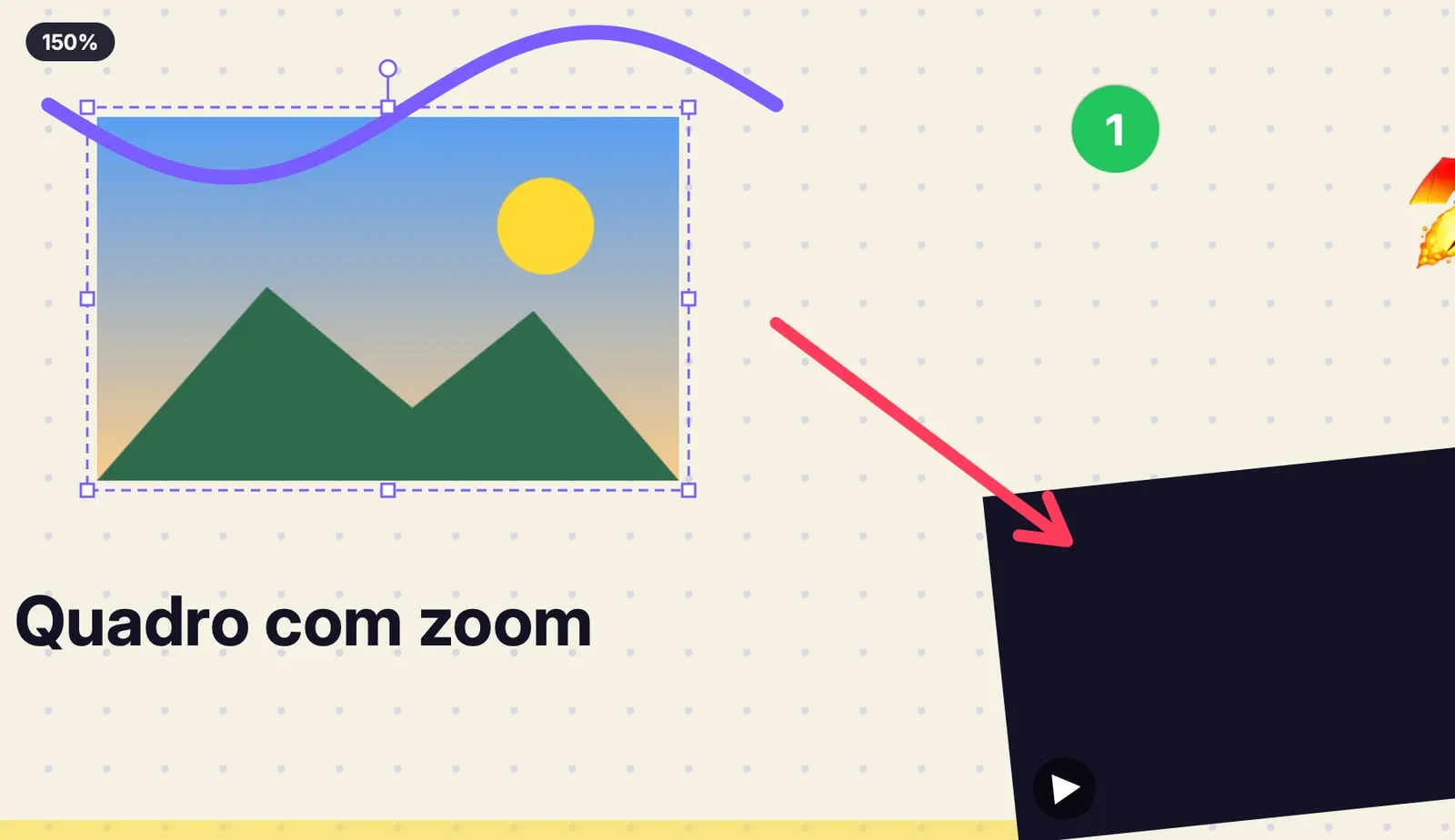
Plain, dotted, lined or grid background in any color and opacity — let your screen show through. Up to 20 pages, 25% to 400% zoom, images, videos and stickers on the board.

  • A single .leviosaquadro file with everything inside
  • Freeze the screen and draw on top
Whiteboard at 150% with a selected image, a purple stroke, numbering and a red arrow

Floating camera

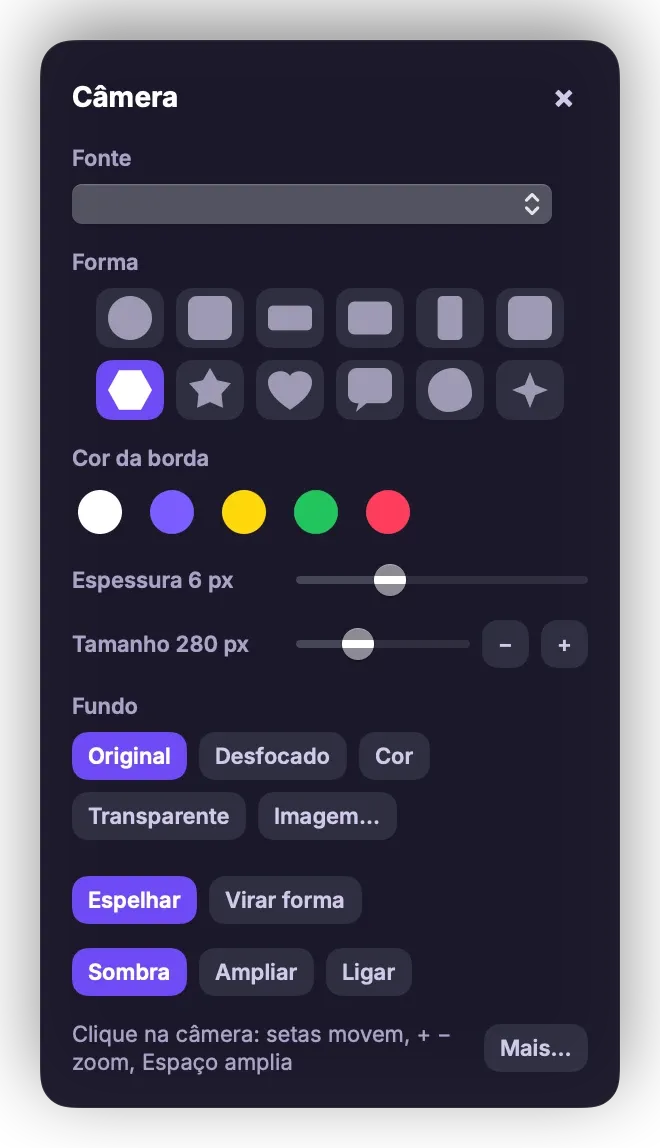
Your camera in a bubble above everything: circle, hexagon, heart, or your own PNG/SVG shape. AI person cut-out on your own computer, with blurred, color, image or transparent background.

  • Chroma key with spill removal
  • 10 presets with shortcuts
Quick camera panel: shape, border color, width, size and background

Presenting

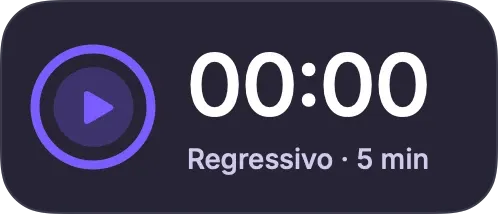
A spotlight that dims everything except where you point, a 2× to 4× magnifier, cursor highlight, click effects, keys on screen and a draggable timer.

  • Radial menu on the middle button
  • None of your toolbars show up — only what matters
5-minute countdown timer

Recording + editor

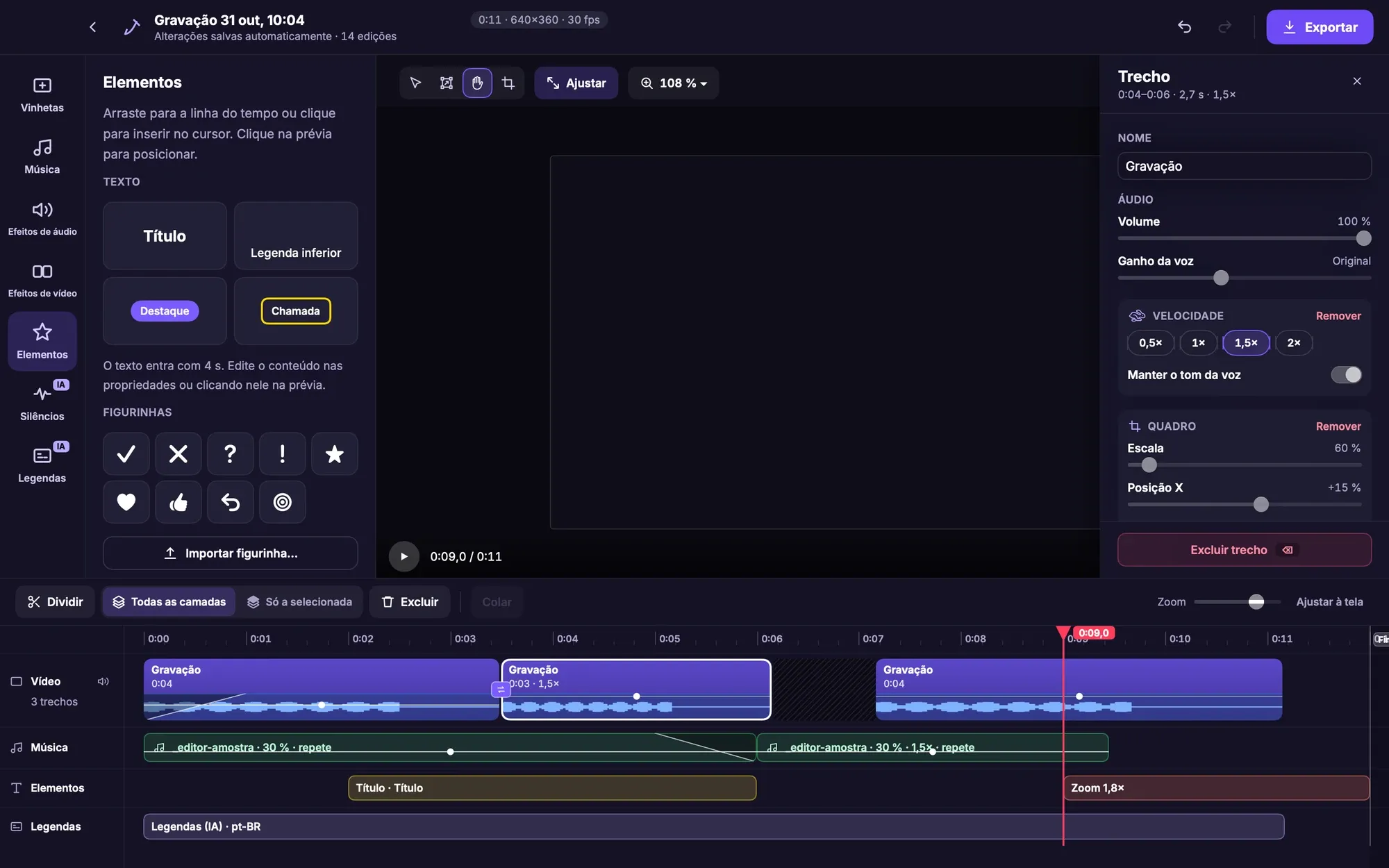
Record the screen or a region as MP4 or GIF, with microphone and system audio. When you stop, the editor opens: cuts, speed, transitions, automatic zoom on clicks, music with ducking, titles and export in 1080p or 4K.

  • Remove silences in one click
  • Non-destructive project, saved on every change
Post-recording editor with timeline, clips, music, elements and captions

Captions

Live captions on screen, recognized on your computer. Transcribe a recording to .srt, edit it in the editor, burn it into the video or keep it alongside.

  • Portuguese, English and Spanish
  • The microphone never turns on by itself

Casting

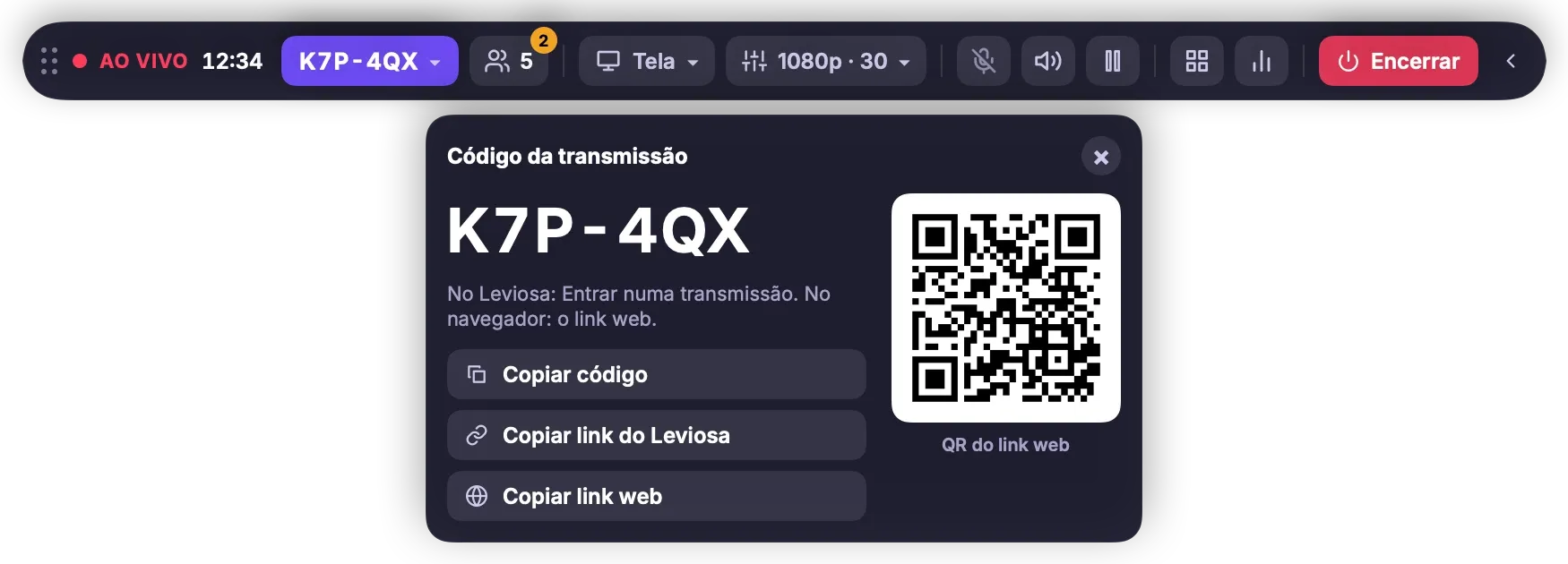
Share your screen with your drawings using a 6-character code. People on the same network watch straight from your computer; people far away, through the server. In reverse mode, you see your viewers' screens.

  • In Leviosa or in the browser
  • Optional password and waiting room
Live casting bar with the code K7P-4QX, a QR code and copy buttons
Casting

One code. Any network. Even your viewers' screens.

No account, nothing to install on other machines. The code opens in Leviosa or in the browser.

  1. Get a code

    Pick a screen, window or region and click Cast. Your drawings are included; Leviosa's toolbars are not.

  2. Local network or cloud

    People on the same network get the video straight from your computer, without going through the internet. Everyone else joins through the server, at the same quality.

  3. Reverse mode

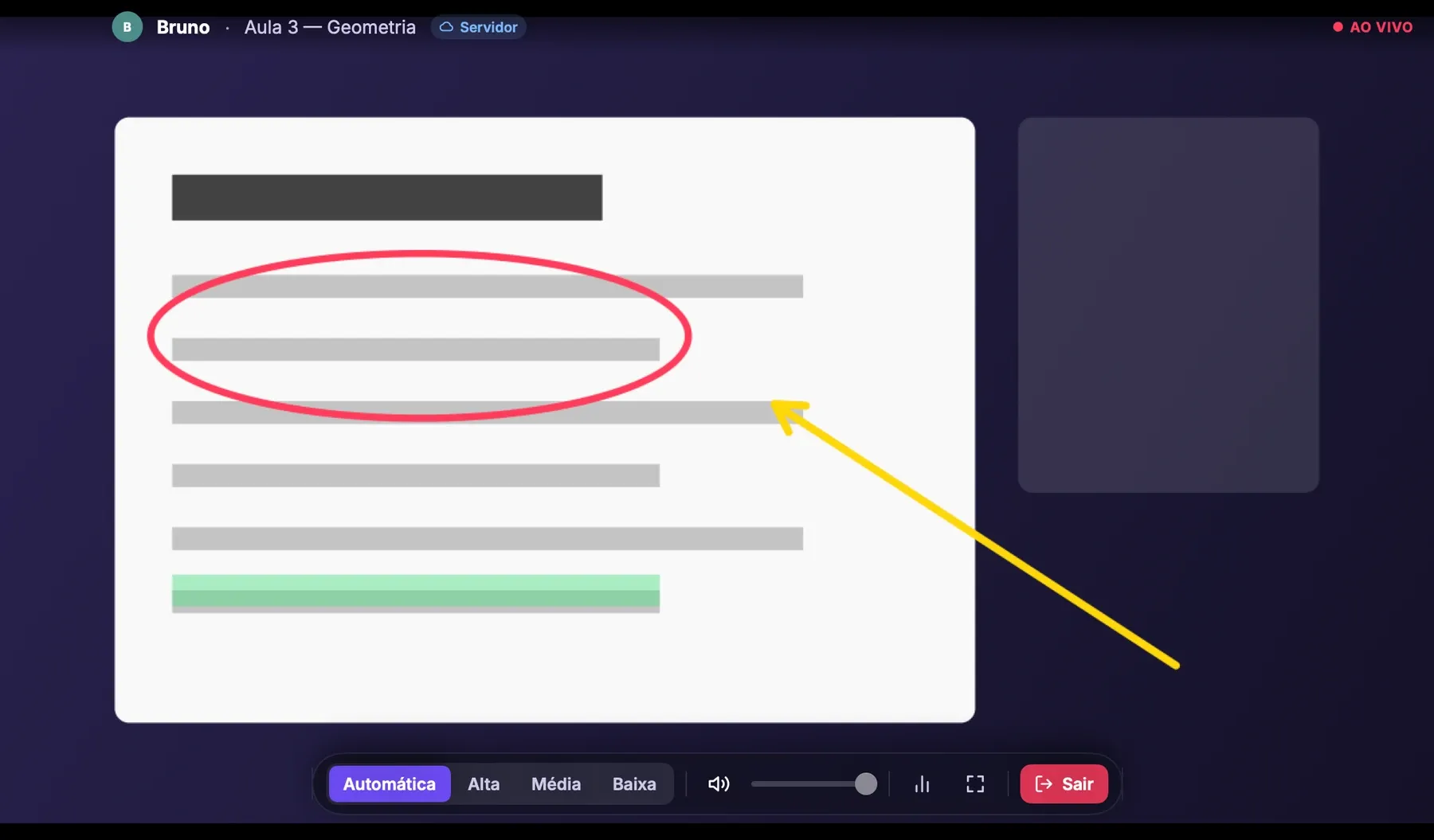
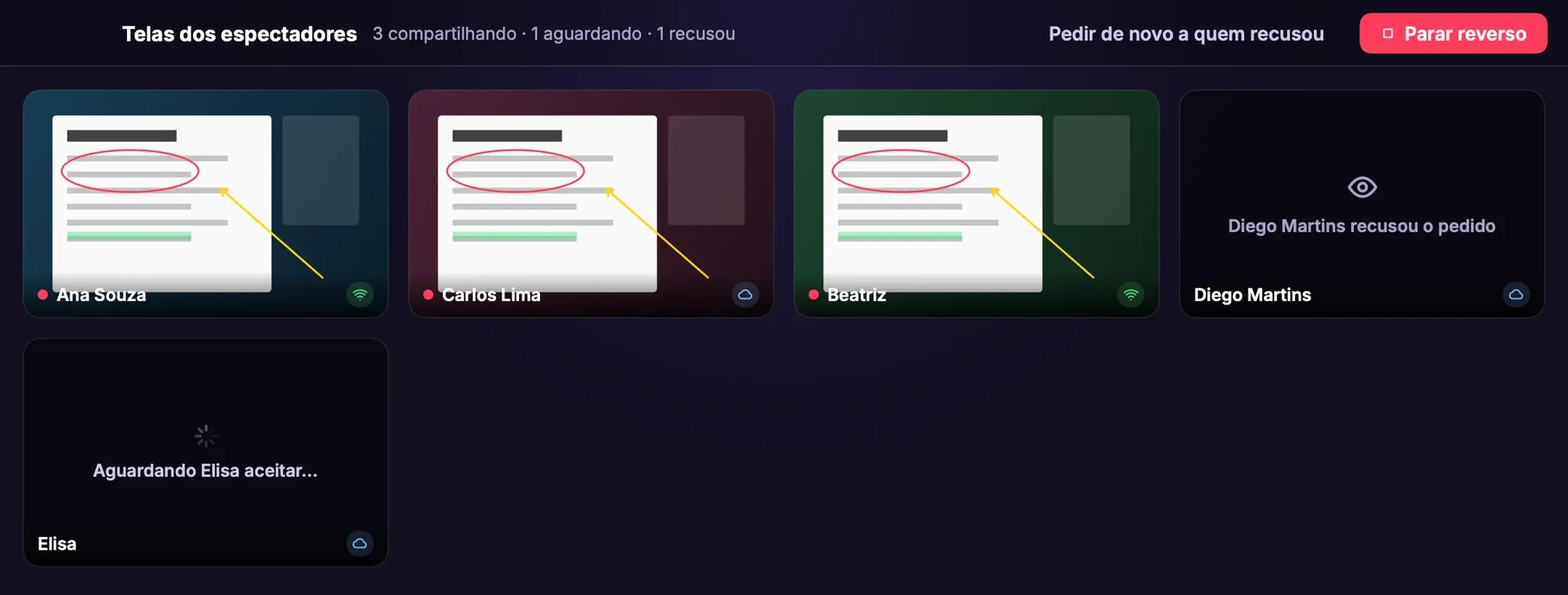
    Ask to see your viewers' screens. Each person accepts or declines; those who accept show up in a gallery and you can open one in focus.

Viewer of a cast with an ellipse and an arrow drawn over a document
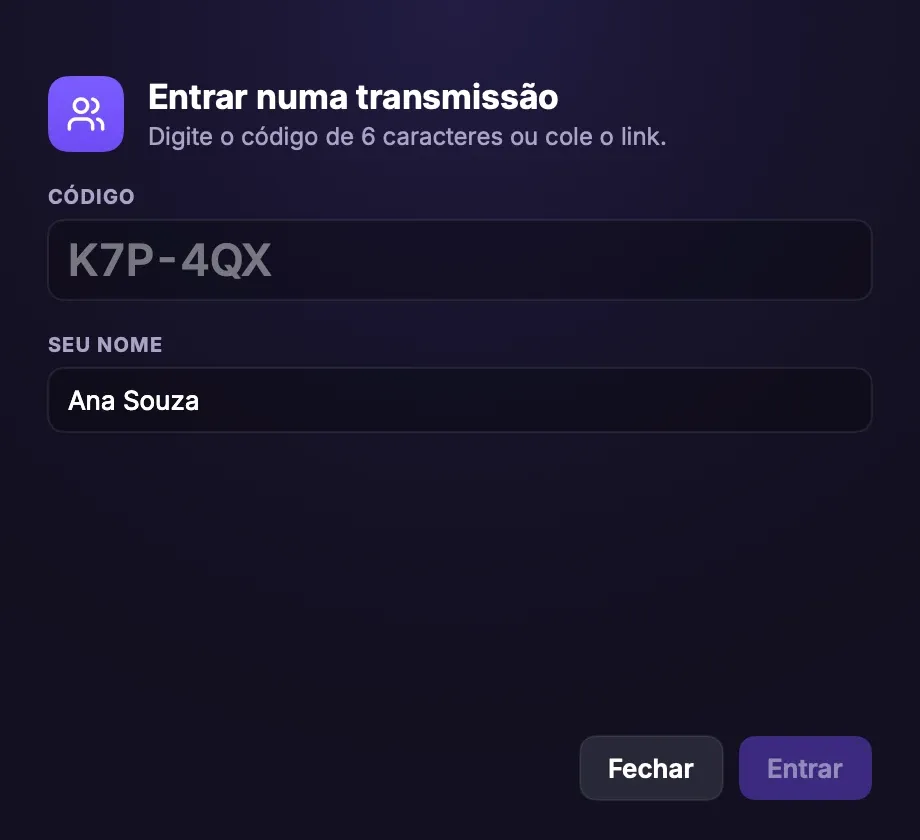
Join a cast window with the code field and the name
Gallery with four viewers' screens in reverse mode
Viewers' screens · 3 sharing · 1 waiting
Shortcuts

Your hands stay on the keyboard.

All configurable. Hold a tool's key to use it only while it's pressed.

⇧⌘D
Draw / pause
P
Pen
H
Highlighter
L
Laser
A
Arrow
T
Text
1–9
Palette colors
⇧⌘W
Whiteboard
⇧⌘C
Camera
⇧⌘S
Spotlight
⇧⌘F
Freeze the screen
⌘Z
Undo

In global shortcuts, ⇧⌘ on macOS is Ctrl+Shift on Windows.

Privacy

Local first.

Drawings, recordings, camera cut-out and captions are processed on your computer. An account is optional, with no telemetry and no uploading of your files. Casting only uses a server when someone is outside your network — and the media is encrypted by WebRTC.

  • Optional account Download, open, draw. The account is only for the cloud and paid plans.
  • No telemetry The only record is the log on your disk, for you.
  • Open formats Sessions, boards and editor projects are readable JSON.
Plans

Start free. No watermark.

The Free plan has everything you need to draw, present, record and cast. When you need longer videos, 4K or more cloud features, just switch plans.

FAQ

What people ask most

Does it work on top of full-screen apps?

Yes. The overlay sits above any window, including full-screen presentations, on every display and desktop.

Do Leviosa's toolbars show up in Zoom, Meet or OBS?

No. The floating toolbar, panels and radial menu stay out of captures and screen sharing. Only drawings, the camera and presentation effects appear.

Do I need an account to cast?

On the same network (school, office, home), no: Leviosa streams straight from your computer. To stream over the internet, yes — a free account is enough, and your plan sets how many people, for how long and at what quality. Viewers never need an account: they open the code in Leviosa or the link in the browser.

Does the AI camera cut-out use the cloud?

No. Person segmentation runs on your own computer, offline. On Windows, for now, the cut-out uses chroma key.

Does it work with a stylus and pressure?

Yes. The pen responds to pressure (30–100% of the width) and the back of the stylus erases. The right mouse button also works as an eraser.

What languages is the app in?

Portuguese, English and Spanish — switching takes effect immediately. Live captions recognize all three.

How much does it cost?

The Free plan already includes drawing, whiteboard, camera, recording with the editor and casting — with no watermark. Paid plans remove the video length limit and unlock more cloud features. Prices are on the pricing page.

Can I use Leviosa with Claude or another AI assistant?

Yes, on the Pro and Team plans. Connect Leviosa as an MCP connector and the assistant can find your recordings, read the transcripts and create links to share — only with your permission, and you can disconnect at any time. How to connect an assistant

Ready for your first stroke?

Installs in seconds, opens in 0.1 s and uses 33 MB of memory.

macOS 12 or later · Apple Silicon and Intel · Windows 10 or later · x64 and ARM64 · Version 1.0